Who this guide is for
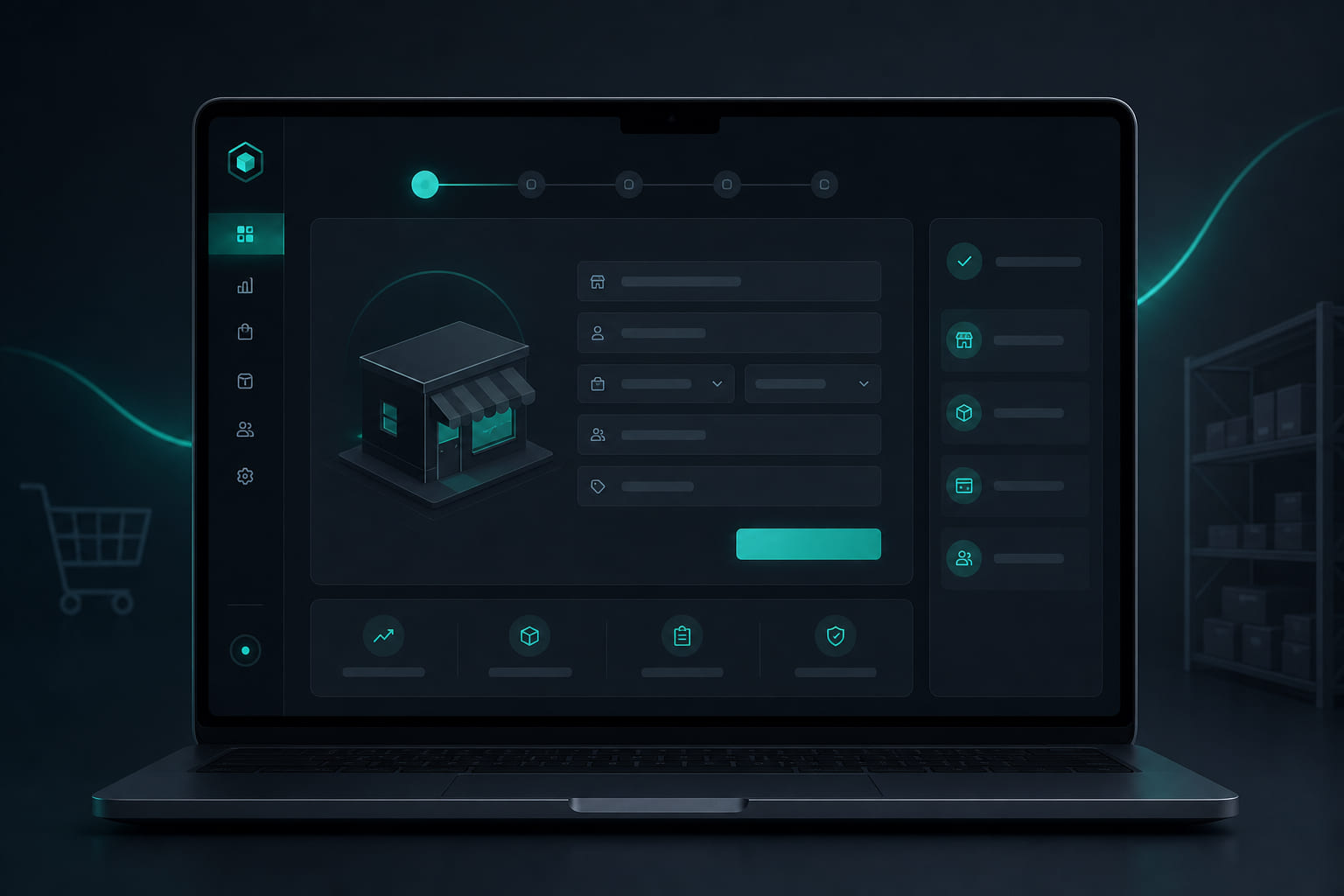
This guide is for store owners and operators setting up StoreBoard for the first time. You will create an account, name your organization, add your first location, and choose a subscription plan.
Employees do not go through this flow — you invite them after setup from the dashboard.
Step 1 — Create your account
- Go to Get started and enter your work email — this becomes your owner login.
- Verify your email if prompted, or sign in with Google if your organization uses it.
- Choose a secure password you will use for the web dashboard.
Step 2 — Name your organization
Your organization is usually your business or brand name. All locations and team members live under this organization.
- Enter your business name as you want it to appear on invites and reports.
- This name shows on employee notifications and daily digests.
Step 3 — Add your first location
- Enter your store address — used for GPS clock-in verification.
- Set operating hours and timezone so tasks and digests run on the correct schedule.
- You can add more locations later from Dashboard → Locations.
Step 4 — Choose your plan
Select Essentials or AI, pick monthly or yearly billing, and add a card at checkout. Essentials includes a 28-day free trial for eligible new workspaces. Every plan includes 5 seats — add more if your team is larger.
- Compare Essentials vs AI on the subscription step.
- Enter the number of seats you need (minimum 5 included).
- Complete checkout — your workspace is ready immediately.
What happens next
After checkout you land in the dashboard. Invite your team from Dashboard → Team, build task templates from Dashboard → Tasks, and have employees download the mobile app.
Questions? See our FAQ & troubleshooting guide or contact support.
Ready to set up your store?
Create your account and configure your first location in minutes.
Get started