Before you invite
Confirm you have enough seats. Active members plus pending invites must not exceed your purchased seat count.
Sending invites
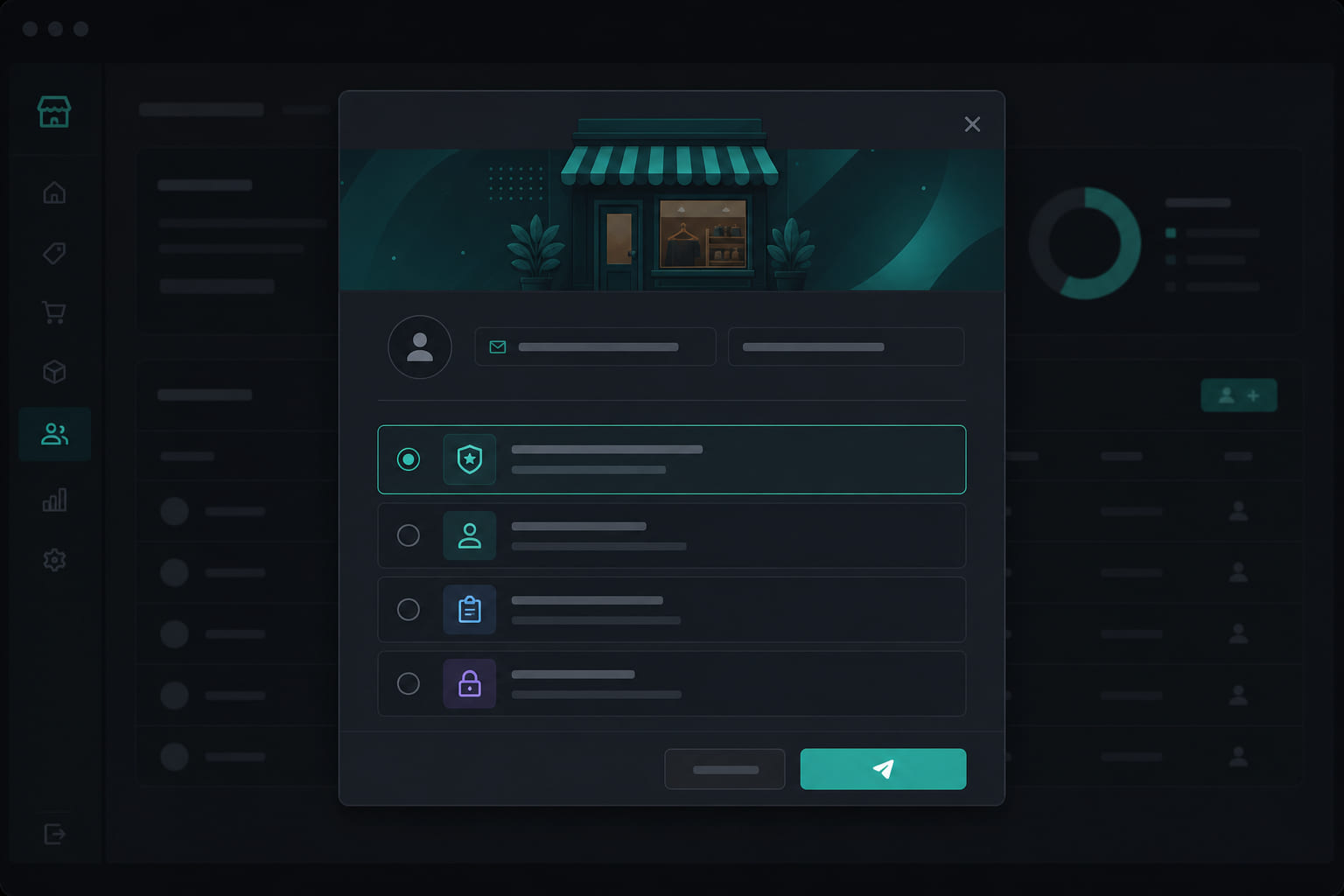
- Go to Dashboard → Team and click Invite member.
- Enter email or phone number for SMS invite.
- Choose organization role: member (default) or admin.
- Assign locations and toggle Store manager for locations they will run.
- Send the invite — they receive a link to create their account.
Roles explained
Owners and admins manage billing, all locations, and org-wide settings. Store managers run day-to-day operations for assigned locations — tasks, schedule, incidents, stock. Employees use mobile for Today, clock, incidents, and stock alerts.
After invite acceptance
- Employees download the StoreBoard mobile app and sign in.
- They see tasks and shifts for their assigned locations.
- Managers can use web dashboard or mobile manager screens.
Tip: Invite managers first so they can help build task templates before rolling out to the full floor team.
Questions? See our FAQ & troubleshooting guide or contact support.
Ready to set up your store?
Create your account and configure your first location in minutes.
Get started