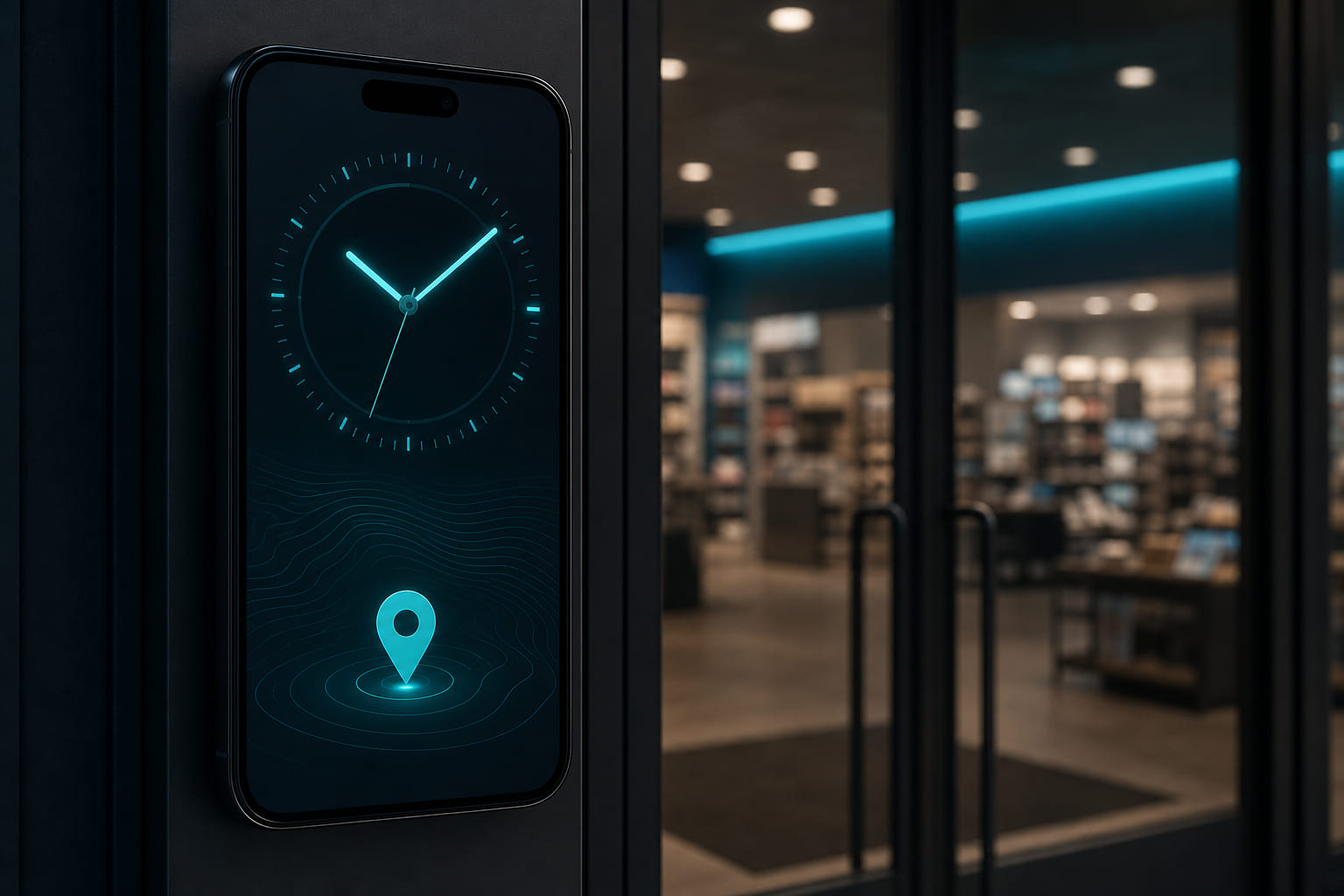
GPS-verified punches
StoreBoard records clock-in and clock-out with GPS coordinates tied to the assigned location. Photo proof at punch adds another layer of accountability.
When you can clock in
Clock-in opens 30 minutes before your scheduled shift at that location and stays open until the shift ends. You need a shift on today's schedule — punching outside that window is blocked. The web dashboard shows a message in the clock-in dialog when you are too early or have no shift today.
Clocking in on mobile
- Open the Clock tab in the mobile app.
- Tap Clock in — allow location permissions when prompted.
- Take the verification photo if your organization requires it.
- Active shift shows elapsed time on the Clock screen.
Clocking out
- Return to the Clock tab when the shift ends.
- Tap Clock out — GPS confirms you are still at the location.
- Entry saves to timesheets automatically.
Timesheets and labor
Managers review entries from Dashboard → Time clock. Org admins can export timesheet data for payroll. Compensation rules tie hourly rates to labor cost snapshots on the overview.
Questions? See our FAQ & troubleshooting guide or contact support.
Ready to set up your store?
Create your account and configure your first location in minutes.
Get started